
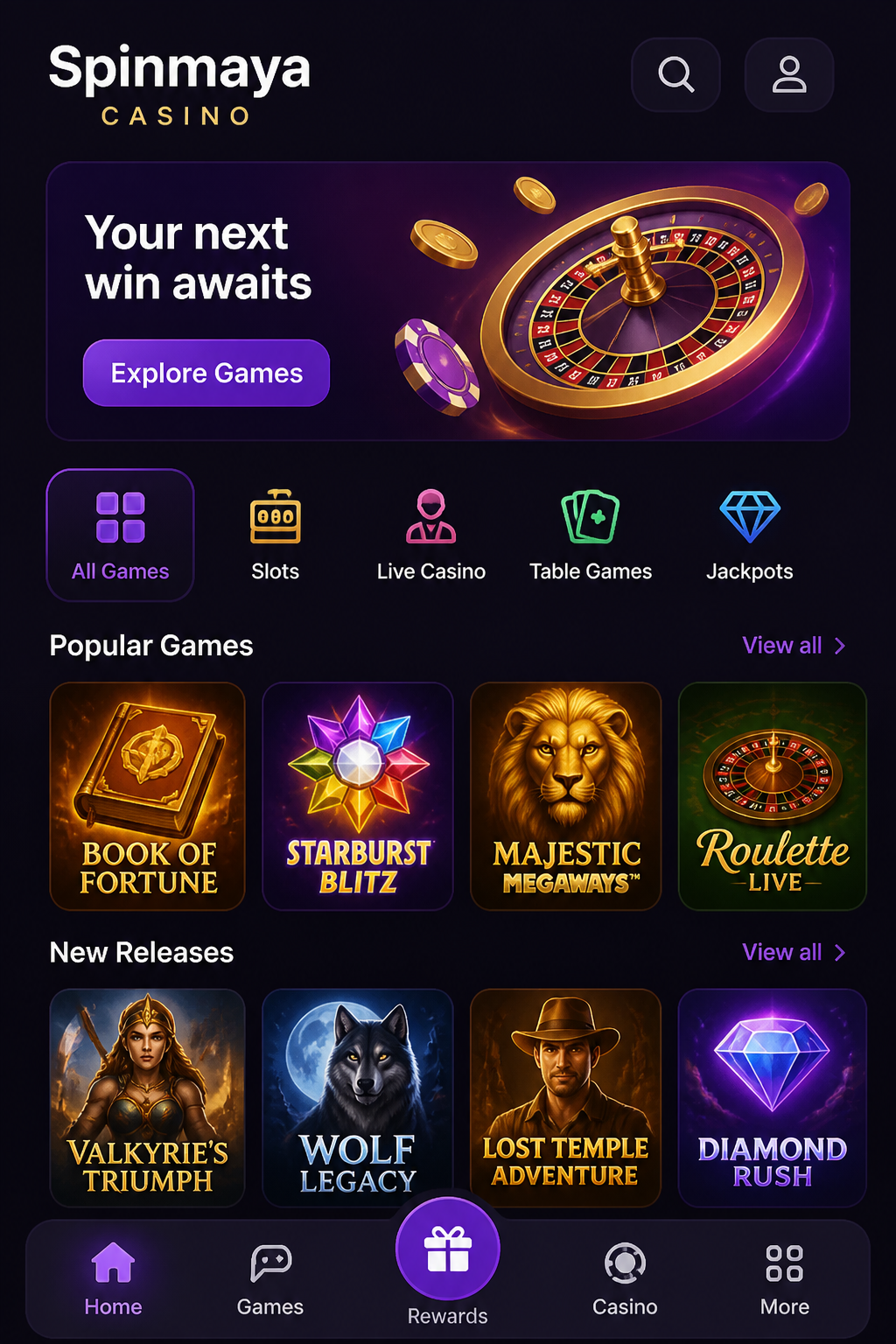
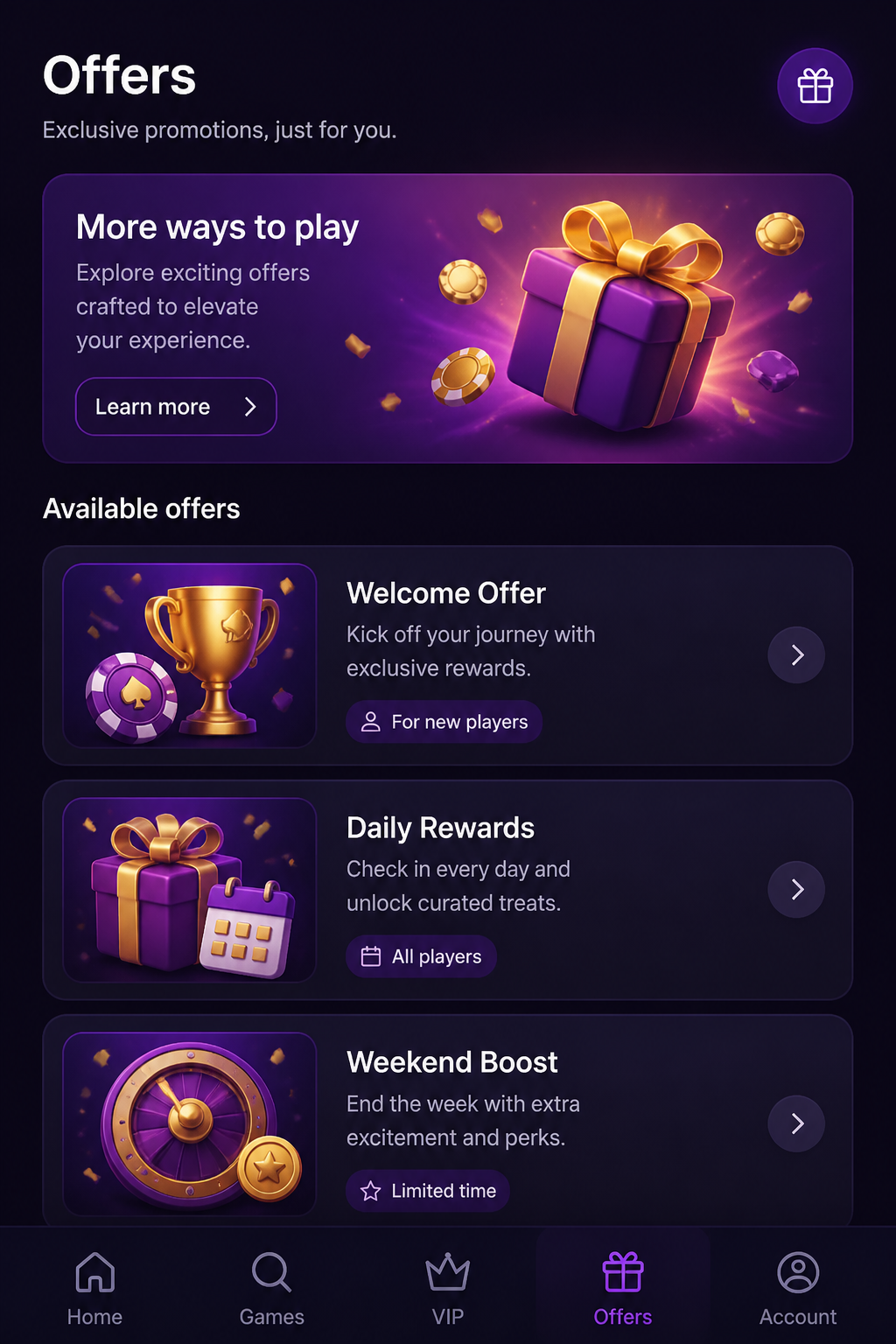
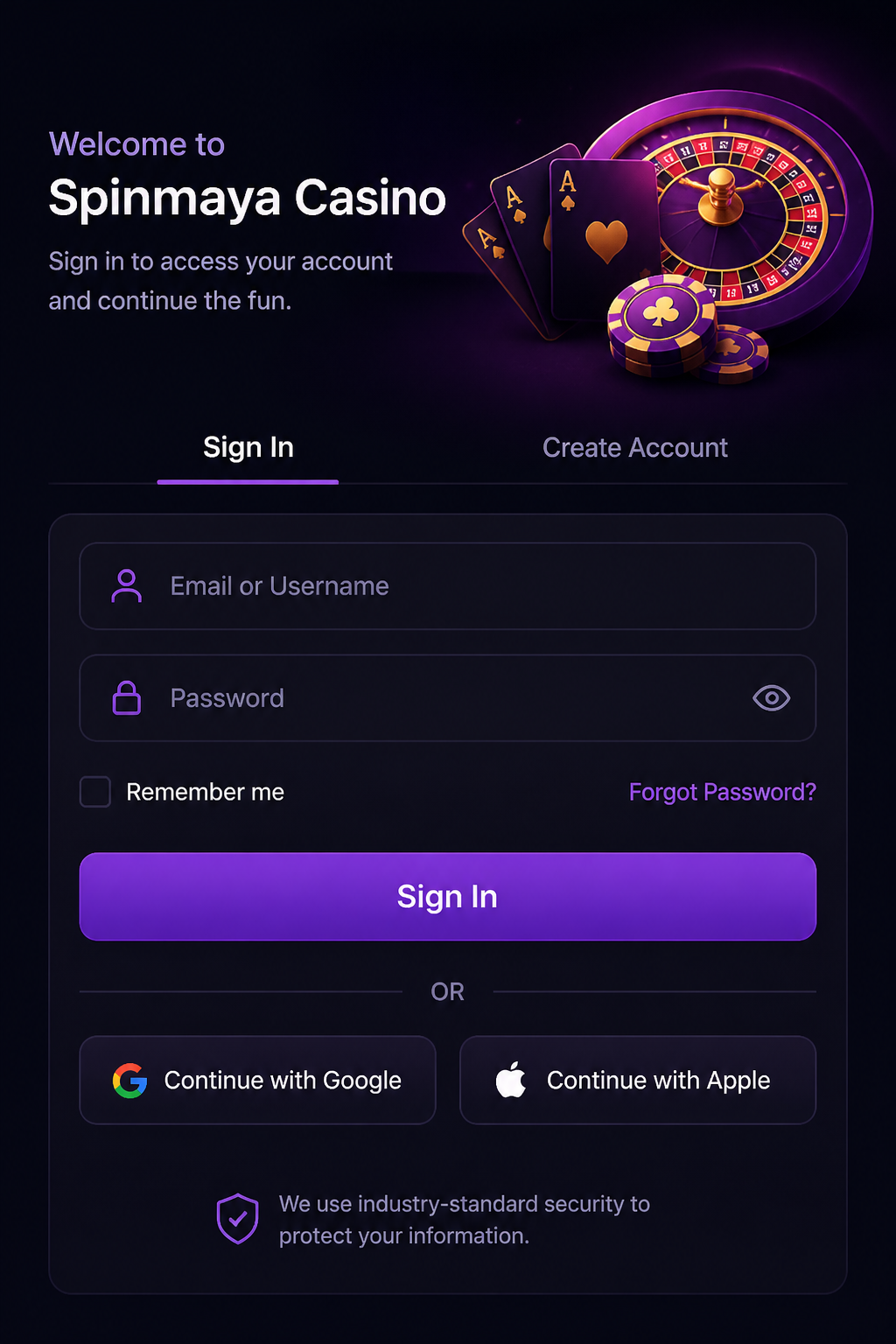
Spinmaya Mobile: How to Gamble on Your Phone and Tablet starts with opening our page in your device's browser. You can then log in and access the different sections of your account.
Below, we explain how to create a shortcut, manage payments and documents on your phone, and resolve common problems. If you need assistance, you can contact us via email or Live Chat.
| On your mobile device | Spinmaya |
|---|---|
| Devices | iPhone, iPad and Android |
| Browser | Safari or Chrome |
| Download | Not required |
| Quick access | Home screen icon |
| Games | Slots, jackpots and scratch cards |
| Live tables | Roulette, blackjack and game shows |
| Payments | Debit card, credit card, Skrill, Neteller |
| Account verification | Upload documents using your camera |
Spinmaya Mobile at a Glance
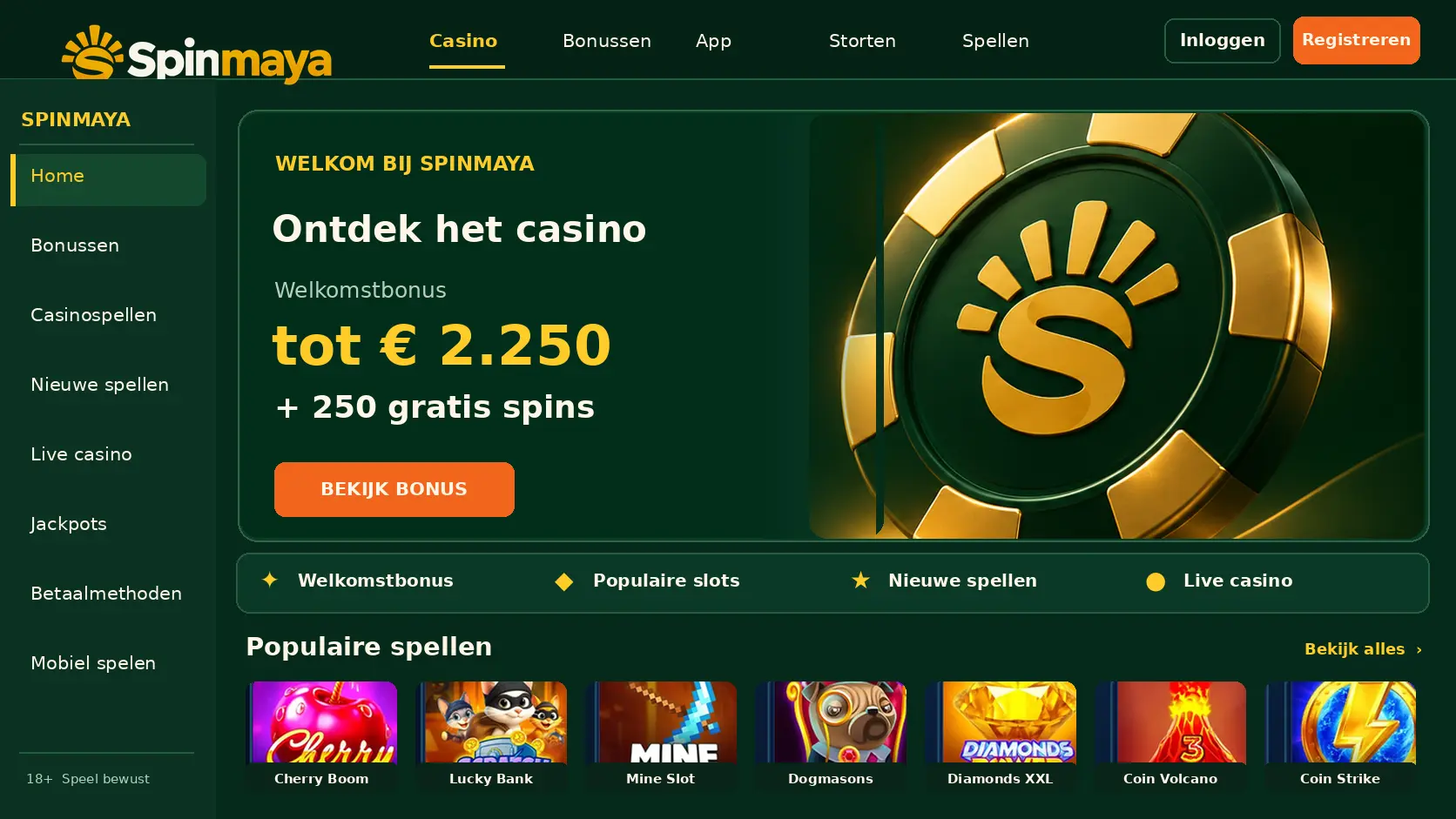
You can open our page on a phone or tablet and log in with your existing account. Using a browser is different from using an app: you do not need to install a separate casino app to access the website through your browser.
These practical features help you use our page on a phone or tablet without having to install a separate app for browser access.
- No separate installation for browser access — You open our page directly in your browser and do not need to install a separate installation file on your device.
- An easily recognisable shortcut — A home screen icon lets you open our page later without having to search through your bookmarks or browser history again.
- Use on a phone or tablet — You can access the same account on a phone or tablet and choose the screen on which you find forms easiest to read.
- Photographing documents — When we request a document, you can use your device's camera to take a clear photo for uploading.
- Help during a session — If you encounter a problem while using your device, you can describe what happened and which message appeared by contacting us via Live Chat or email.
How to Open Spinmaya on Your Phone
Open the browser on your device and visit our page. Then use the login button to access your account. Keep your login details private when someone else can see your screen.
Follow these steps on your phone or tablet to open our page and log in. Browser access works without a separate casino app.
- Open our page — Launch Safari on your iPhone or iPad, or Chrome on your Android device, and open our page in the browser.
- Check the app information — Look for information about a possible app on our page. A separate app or download has not been confirmed, so use the browser option instead.
- Install only if necessary — Follow only the displayed instructions if an app is offered for your device. You do not need to install a casino app to use the browser.
- Log in to your account — Open the login section, enter your details and check that your account appears. Log out when you are finished using a shared device.
Playing in Your Browser Without Downloading
In your browser, you navigate between pages using the buttons on the screen. Only close a tab after completing an action so that you do not accidentally leave a form before submitting it.
Adding a Spinmaya Icon to Your Home Screen
A home screen shortcut opens our page again in your browser. Such an icon does not prove that a separate app has been installed and does not replace your account details.
Setting Up Spinmaya on iPhone and iPad
On an iPhone or iPad, you can use Safari to open our page. The steps for adding a home screen icon are explained below. The name of a browser button may vary depending on your device version.
Opening Spinmaya in Safari
Launch Safari and open our page. Rotate your device if a form or game is easier to read in landscape mode. Switch back to portrait mode when you want to navigate the menu more easily.
Adding Spinmaya to Your Home Screen
Tap the share button in Safari and choose the option to add the page to your home screen. Give the shortcut a recognisable name and confirm. You can then open it from your home screen.
Setting Up Spinmaya on Android
On an Android device, you can use Chrome to open our page. You can create a shortcut through the browser menu without having to open an installation file.
Opening Spinmaya in Chrome
Open Chrome and visit our page. Make sure you are on the correct page before entering your login details, especially when accessing it through a saved bookmark or a shared device.
Adding Spinmaya to Your Home Screen
Open the three-dot menu in Chrome and select the option to add the page to your home screen. Confirm the name and place the icon somewhere you can easily find it.
The Mobile Version of Spinmaya
On a small screen, it is helpful to open the menu first and then select one section at a time. This prevents you from switching between multiple forms while making a payment or changing your account details.
Use the following sections as a guide when navigating on a small screen. Open the relevant section and complete your action before moving on.
- Navigation — Open the menu on your screen and select the section you need so that you do not have to switch between multiple forms.
- Game selection — Browse the displayed categories or use the search function, if available, to find a game by name.
- Payment page — On the payment page, you can review the displayed options and check the amount before confirming a transaction.
- Account details — Open your account to review your information and carefully check any changes before submitting them from your device.
- Document upload — If we request a document, use the designated upload function to attach a clear photo from your phone.
Menus and Buttons on a Small Screen
Zoom in on the page if the text or buttons are difficult to read. Scroll carefully to the confirmation button and check the information you have entered before submitting a form.
Finding and Saving Games on the Go
Use the search function or game categories if they appear on your screen. If you see an option to save a game, you can use it to find that game more easily later.
Playing Slots on Your Phone
Open a slot from the game selection and read the game rules before confirming a bet. On the game screen, check your selected stake and the number of paylines or other settings that determine your total bet.
Live Tables on Your Smartphone
At a live table, you watch a video stream and make decisions using the screen. A stable connection helps you follow the video and controls. If the connection is interrupted, wait until you can see the current game status before placing another bet.
Table Games and Scratch Cards on the Go
Before playing a table game, check which buttons are used to place and confirm your bets. With a scratch card, check the price before opening it and review the result on the screen before continuing.
Using Bonuses on Your Phone
If you see a bonus in your account, read the associated terms and conditions before using it. Pay attention to the wagering requirements, validity period and any game restrictions so that you understand what happens to your bonus balance.
Deposits and Withdrawals on Your Phone
Open the payment page from your account to review the displayed deposit and withdrawal options. Check the amount and destination before confirming a transaction, and do not close the screen while it is being processed.
Quick Deposits with Your Debit Card or E-Wallet
If a debit card or e-wallet appears on your payment page, select that option and enter the desired amount. Follow the payment method's confirmation steps and wait for a response before attempting another payment.
Requesting a Withdrawal on the Go
Select the withdrawal option on the payment page and enter the requested details. Carefully check the destination and amount. Keep the confirmation so that you can find the request in your account later.
Managing Your Account on Mobile
Through your account, you can review your details and make changes where necessary. Log out when you are finished using a shared device so that the next user cannot continue using your session.
Uploading Your Documents Using the Camera
If we request a document, you can use your camera to take a clear photo and attach it through the designated upload function. Make sure the requested information is readable and check the image before submitting it.
Gambling Safely on Your Smartphone
Decide in advance how much money and time you want to spend and stop when you reach that limit. Use a screen lock and do not share your password. This reduces the risk of someone else accessing your account.
Mobile Data, Wi-Fi and Battery
Video streams can use more mobile data than text-based pages. Keep an eye on your data allowance and battery level, especially during a live game, and close other apps if your device responds slowly.
Troubleshooting Spinmaya on Your Phone
If you encounter a problem, note what action you were performing and what message appeared. This allows you to explain exactly where you are having trouble when contacting us via Live Chat or email, without sharing your password.
The Website Will Not Load
First, check whether other pages load and switch between Wi-Fi and mobile data if necessary. Then close the browser tab and reopen our page. If the problem persists, contact us.
A Game Freezes
Do not repeatedly refresh the page while a bet is being processed. Reopen the game once the connection is stable and check the game status. Provide us with the game name and time if you need assistance.
You Keep Getting Logged Out
Check whether your browser allows cookies and whether you are repeatedly closing a private browsing session. Log in again and contact us if the problem returns. Mention which device and browser you are using.